
How do I secure my website to prevent ‘not secure’ warnings?
To prevent browser “Not secure” warnings, serve your entire website over HTTPS with a valid certificate, redirect HTTP traffic, and remove insecure resources. Certificate errors and malware warnings need different fixes, so identify the message before changing settings. The steps below prioritize secure browsing, then cover the maintenance that supports lasting site security. (support.google.com)
Why does my website show a “Not secure” warning?
A “Not secure” label generally means the browser is using an unencrypted HTTP connection. A certificate warning means the browser cannot validate the HTTPS connection, while a red dangerous-site warning may indicate phishing or malware. These messages are related to online security, but installing a certificate does not resolve every category. (support.google.com)
Start by recording the exact warning, affected address, and browser. Then use this distinction to choose your next step:
| What you see | What to investigate |
|---|---|
| HTTP address or “Not secure” label | Missing HTTPS or an HTTP link that does not redirect |
| “Your connection is not private” | Certificate validity, hostname coverage, or certificate-chain configuration |
| HTTPS page with blocked resources | Mixed content, such as scripts requested over HTTP |
| Red dangerous-site warning | Malware, phishing, or other unsafe content |
Do not ask visitors to bypass warnings or disable browser protection. Diagnose the connection or unsafe content instead; the warning is a symptom to investigate, not a setting to hide. (support.google.com)
Put HTTPS in place across the whole website
HTTPS encrypts traffic between a visitor’s browser and your website. Although providers commonly call them “SSL certificates,” modern HTTPS uses TLS. Start with your hosting provider: ask whether it issues, installs, and automatically renews certificates, or whether you must manage those tasks. (developer.mozilla.org)
Let’s Encrypt provides free domain-validated certificates. Before buying a paid option, identify what extra support or validation you actually need; paying is not a prerequisite for enabling HTTPS. For a small business, reliable installation and renewal should be central selection criteria. (letsencrypt.org)
Use this implementation sequence with your host or developer:
- List every public hostname. Include the main domain, its www version, and relevant subdomains. Confirm certificate coverage for each hostname visitors use.
- Install and test the certificate. Check that browsers trust the certificate and that the server supplies the necessary certificate chain.
- Redirect HTTP to HTTPS. Preserve each page’s path rather than sending every request to the homepage. Test redirects before applying changes broadly.
- Update website references. Change internal links, images, scripts, stylesheets, and embedded resources to HTTPS.
- Verify renewal. Confirm who owns the process, how failures are reported, and whether the renewed certificate is deployed correctly. (developer.mozilla.org)
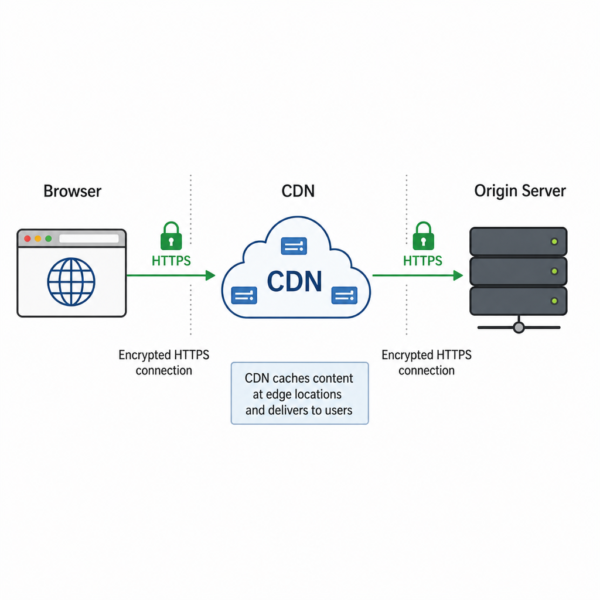
If you use a content delivery network or reverse proxy, ask your provider to check encryption between that service and your origin server too. A secure browser-facing connection is not a reason to leave another part of the connection unprotected. (developer.mozilla.org)
How do I fix warnings when HTTPS is already enabled?
When HTTPS is enabled but warnings remain, check certificate validation and mixed content first. The certificate must cover the requested hostname and validate successfully; the page must also avoid loading insecure resources. Test the exact page showing the warning, not just your homepage. (developer.mozilla.org)
Open your browser’s developer tools and inspect the Console and Network panels. Mixed-content messages identify resources requested over HTTP, making them useful starting points for locating outdated references. An old theme image, embedded widget, or third-party script can require attention even after the main page moves to HTTPS. (developer.mozilla.org)
Replace insecure references with working HTTPS versions. If a provider cannot supply a resource securely, replace or remove it rather than telling visitors to allow blocked content. Afterward, check representative product pages, forms, account screens, and older posts; different templates may load different resources. (developer.mozilla.org)
A practical option for WordPress
For WordPress users, I recommend the WP Encryption plugin to help implement SSL encryption, enforce HTTPS, and apply advanced security features. Its directory listing includes mixed-content fixes, certificate-expiry notifications, security headers, and additional hardening controls. Check which installation and renewal functions apply to your hosting environment and chosen edition before relying on automation.
Back up first and coordinate with your host before changing redirect settings. Avoid having several tools independently manage the same HTTPS behavior. After configuration, test sign-in, forms, and other important visitor journeys rather than assuming activation alone completed the work.
Add protection beyond the browser connection
HTTPS protects data in transit; it does not prove that every page, account, or application is safe. Broader digital security requires maintained software, controlled access, and defenses suited to the application. Treat removing the warning as the baseline, not the finish line. (developer.wordpress.org)
Prioritize these cybersecurity tips:
- Keep software supported and updated. Maintain your CMS, plugins, themes, and server software; remove components you no longer need.
- Limit administrator access. Give people only the permissions their work requires, and remove accounts when access is no longer needed.
- Protect administrator credentials. Use strong, unique passwords and protect the devices used to manage the website.
- Keep recoverable backups. Store copies separately and test restoration before an emergency.
- Consider a web application firewall. A WAF filters application traffic and can help defend against attacks such as SQL injection and cross-site scripting. (developer.wordpress.org)
Ask your developer about browser-enforced controls as well. HSTS tells browsers to use HTTPS for subsequent connections. Enable it only after HTTPS works reliably, and confirm every relevant subdomain is ready before applying includeSubDomains. (developer.mozilla.org)
A Content Security Policy restricts which resources a page may load; test it carefully to avoid disrupting legitimate integrations. Session cookies should use appropriate Secure, HttpOnly, and SameSite attributes. These controls address different risks and should be configured for your application rather than copied blindly. (developer.mozilla.org)
Choose support with clear responsibilities
When comparing hosts or security services, ask who manages certificate renewal, software patching, backups, malware response, and recovery. Request a clear explanation of what is included and what requires additional work. This turns a vague promise of “protection” into a useful service discussion.
A solid security company website should help you understand those responsibilities, not simply display badges. Ask prospective providers how they report incidents, what access they need, and how they demonstrate that a problem is resolved. Favor understandable answers over an unexplained security score.
How can I monitor security without checking everything manually?
Combine certificate-expiry alerts, external TLS checks, security-header testing, and application monitoring. Qualys SSL Labs evaluates public TLS configuration, while MDN HTTP Observatory assesses HTTP security headers. Neither replaces checking your actual application and important customer journeys. (ssllabs.com)
Give your monitoring a simple routine:
- After changes: Test HTTPS redirects, account access, forms, and key page templates.
- During regular reviews: Check failed scans, update status, unexpected accounts, and backup results.
- When an alert arrives: Assign an owner, investigate the cause, document the fix, and retest.
If you searched for “website security dashboard to review gpgaddy,” confirm whether you meant GoDaddy before following product-specific instructions. GoDaddy documents a Website Security monitoring dashboard with a Security Check page for malware scans. Use the instructions matching your actual product. (godaddy.com)
Help visitors recognize legitimate destinations
Secure browsing also means checking where a link leads. For example, someone seeking the Social Security Administration website login should begin at the official Social Security website and follow its account sign-in options. SSA documents access through its supported identity providers; a familiar-looking page alone is not sufficient verification. (ssa.gov)
Apply that lesson to your own site: keep account links clear, avoid misleading third-party branding, and explain legitimate handoffs. HTTPS is essential, but visitors still need to understand whose service they are using.
Make security a maintained habit
Start with the exact warning, fix HTTPS and insecure resources, then verify the result on real pages. Assign ownership for renewals, updates, monitoring, and recovery. Your next action should be concrete: test an affected address and give the finding to whoever manages your hosting.