Skip to content
wp encryption ssl

WP Encryption

WordPress SSL Plugin

  • ChatGPT AI Content Writer WordPress Plugin
  • Cookie Policy
  • DOCS
  • Hire WordPress SSL Expert
  • Introducing Cert Panel
  • My Account
  • Pricing
  • Refund Policy
  • Sitelock Monitor Features
  • Terms and Conditions
  • Thank You
  • WordPress Mixed Content Scanner
  • WordPress SSL Solution
  • WP ENCRYPTION CDN

Permit WordPress to Reload Apache2 Server Gracefully

Home > Docs > Permit WordPress to Reload Apache2 Server Gracefully
Note: Modifying server config files via SSH console is a complicated process and may break your site if not done perfectly. If you are not an SSH expert, We highly recommend upgrading to PRO version and let our premium support handle / help with this server setup.

Whenever a new SSL certificate is generated by WP Encryption WordPress plugin, your Server must be restarted / reloaded once for newly created SSL certificate to load onto front-end site. This requires you to login via SSH console as root / sudo user and perform the restart or you could restart the server altogether via your hosting panel.

To avoid manual restarting of Apache server whenever a renewal of SSL certificate is completed, you can permit WordPress directory user, which is probably www-data on most servers to reload apache by modifying your sudoers file as explained below:

  1. Login to your SSH console as sudo / root user
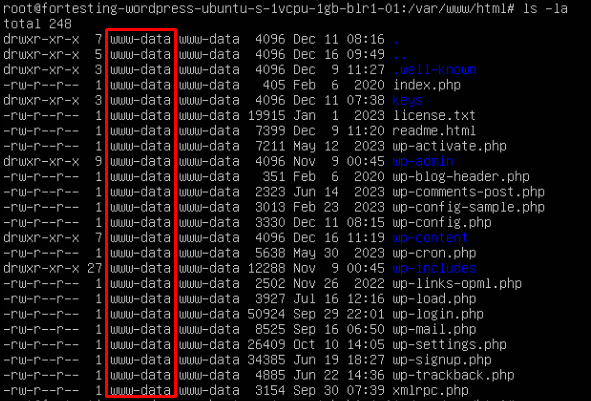
  2. CD into your WordPress directory to check username of directory owner Ex: www-data, ubuntu, admin
3. Modify sudoers file using below command

nano /etc/sudoers

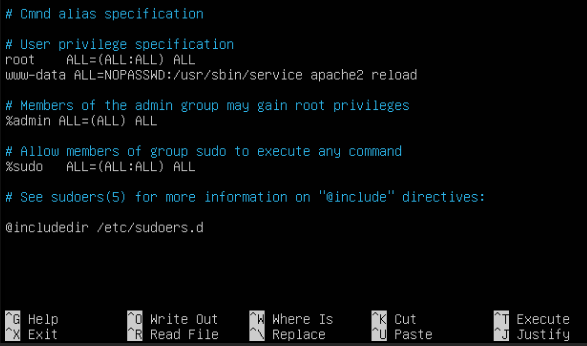
4. Add the below line of code in “user privilege specification” section replacing www-data with the correct username if its different for your WordPress directory

www-data ALL=NOPASSWD:/usr/sbin/service apache2 reload

as shown in below screenshot,

Press CTRL + O to save the file and CTRL + X to exit nano editor.

That’s it!. WP Encryption Premium plugin will automatically reload apache and load the renewed fresh SSL certificate on your frontend HTTPS site without requiring you to manually restart apache.

If you are on Nginx or Bitnami server, please contact our support team at support.wpencryption.com for guidance.

Post navigation

Private Key Doesn’t Appear To Be Valid on Google Cloud
Parse Error Reading JWS Error

The Ultimate SSL Plugin for WordPress Security!

Upgrade to WP Encryption Pro and enjoy hassle-free SSL installation, SSL renewal, advanced security, vulnerability scanning, login protection & much more!.

UPGRADE

Archive

  • What is X-Frame-Options and How To Use It?
  • Parse Error Reading JWS Error
  • Permit WordPress to Reload Apache2 Server Gracefully
  • Private Key Doesn’t Appear To Be Valid on Google Cloud
  • Restrict Private Key Access on Nginx Server

Categories

  • Apache
  • Bitnami
  • DOCS
  • Linux
  • Nginx
  • OpenLightSpeed
  • Plesk
  • SSL Error
  • Ubuntu
  • Uncategorized
  • WHM
  • WordPress

Tags

AWS Bluehost browser chrome compatibility Digital Ocean ERR_TOO_MANY_REDIRECTS Hostgator HTTPS Linux Mapped Domains Multisite SSL webadmin WHM

© 2020-2026   | Terms & Conditions | Refund Policy | Premium Support | Hire SSL Expert | Docs | My Account

We use cookies to give you the best experience on our website. By continued use of site, you accept all the cookies.

You can find out more about which cookies we are using or switch them off in .

wp encryption ssl
Powered by  GDPR Cookie Compliance
Privacy Overview

This website uses cookies so that we can provide you with the best user experience possible. Cookie information is stored in your browser and performs functions such as recognising you when you return to our website and helping our team to understand which sections of the website you find most interesting and useful.

Strictly Necessary Cookies

Strictly Necessary Cookie should be enabled at all times so that we can save your preferences for cookie settings.

3rd Party Cookies

This website uses Google Analytics to collect anonymous information such as the number of visitors to the site, and the most popular pages.

Keeping this cookie enabled helps us to improve our website.

Cookie Policy

https://wpencryption.com/cookie-policy/